
Emergency Calls Only: Why It Shows and How to Fix It
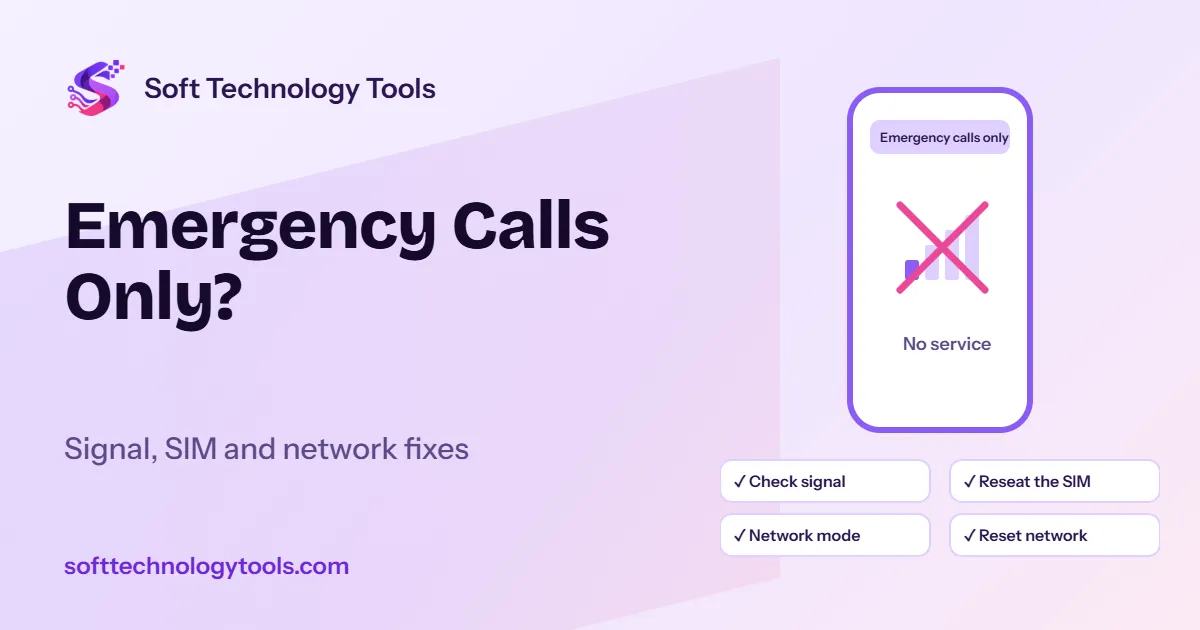
“Emergency calls only” means your phone cannot use your SIM on the mobile network for normal calls, SMS or data. The phone can still try to reach emergency numbers, but your own SIM is not being accepted. The cause is usually weak signal, a SIM problem, a network setting, or a problem with your line or device on the operator’s side.
The good news is that most cases are fixed in a few minutes with the steps below. This guide works for Android phones (Samsung, Redmi, Infinix, Tecno, Vivo, Oppo) and iPhone, on Jazz, Zong, Ufone and Telenor SIMs.
What “Emergency calls only” means
Samsung explains on its “Emergency calls only” support page that most of the time the message appears because of an issue with your signal. It also appears when there is no SIM card, the SIM has an issue, or an eSIM has not been activated.
It is different from “No service”. With “No service” the phone finds no usable network at all. With “Emergency calls only” it finds a network but cannot register your SIM on it, so you see a network name or bars but cannot make an ordinary call.
Common causes
| Cause | Clue | Fix to try |
|---|---|---|
| Weak or blocked signal | Happens in one place only (basement, inside a building) | Move to an open area, restart |
| SIM loose, dirty or damaged | Started after a drop or after moving the SIM | Reseat or test the SIM |
| Wrong network setting | Started after changing settings or an update | Network mode, reset mobile network settings |
| Line not active | Other SIMs work in the same phone | Contact your operator |
| Device blocked or not registered | Any SIM shows the same message in this phone only | Check status on DIRBS |
| Hardware fault | All of the above ruled out, or phone was dropped or wet | Repair check |
Step-by-step fixes
1. Check your signal and location
Go outside or near a window and wait a minute. If the message disappears, the problem is coverage where you were, not your phone. Basements, lifts and the middle of large buildings often have poor signal. Remove a thick metal case too.
2. Turn airplane mode on and off
This makes the phone search for the network again. Apple suggests leaving airplane mode on for at least 15 seconds before turning it off. On Samsung, airplane mode is in Settings, Connections.
3. Restart the phone
Google’s Pixel help suggests powering the phone off rather than choosing restart, waiting 30 seconds, then turning it on again. This clears a stuck network connection.
4. Take out the SIM and put it back
Turn the phone off, eject the SIM tray, check the card for bends or scratches, wipe the gold contacts gently with a dry, clean cloth and put it back correctly aligned. Make sure the tray closes fully. If the card is damaged or bent, your operator can replace it.
5. Check that the SIM is switched on
On dual-SIM phones a SIM slot can be turned off. On Pixel go to Settings, Network and internet, SIMs, pick the SIM and make sure Use SIM is on. On other Android phones the SIM switches are usually in the mobile network or SIM settings. On iPhone go to Settings, then Mobile Data or Cellular, tap the line and check it is turned on.
6. Change the network mode
If you selected 5G only or LTE only and that network is weak where you are, the phone may fail to register. On Samsung go to Settings, Connections, Mobile networks, Network mode and try another mode. Samsung notes that the selected mode “may not connect properly” depending on your location or carrier. On Pixel the preferred network type is under Settings, Network and internet, SIMs.
In the same menus you can see the network operator. If someone has picked a different operator by hand, select your own network again.
7. Reset mobile network settings
This returns the phone’s mobile network settings to their defaults. On Samsung: Settings, General management, Reset, Reset mobile network settings. On Pixel: Settings, System, Reset options, Reset mobile network settings. Samsung’s no network signal guide also suggests resetting Access Point Names to default if data does not work.
8. Update the software
Samsung says outdated software may affect network stability. Install any system update over Wi-Fi with the phone charged. On older Samsung phones with software earlier than One UI 5.1, Samsung says to check that Emergency mode is off: tap the three dots at the top right and choose to turn off Emergency mode.
9. Test with another SIM
Put a SIM that works in another phone into your phone, and your SIM into another phone. This is the quickest way to tell a SIM or line problem from a phone problem:
- your SIM fails in every phone: SIM or line problem, contact your operator;
- every SIM fails in your phone: phone setting, registration or hardware problem.
On iPhone: SOS and No Service
On iPhone the same situation shows as “SOS”, “No Service” or “Searching”. Apple’s page on SOS, No Service or Searching lists these steps: check coverage, turn airplane mode on and off, restart, check for a carrier settings update in Settings, General, About, take out and reinsert the SIM, and update iOS. Apple also says to ask your provider to verify that your account is active and that your device is not blocked or barred from mobile services.
When to contact Jazz, Zong, Ufone or Telenor
Contact your operator if your SIM shows “Emergency calls only” in more than one phone, or if a working SIM is fine in your phone. The operator can check whether your line is active, whether there is an outage in your area, and whether the SIM needs replacing.
Lines can be closed after a long period without use. For example, Ufone’s general terms say a connection that stays inactive for 180 days may be disconnected. The same terms say a duplicate SIM is issued through the same procedure as a new one, with your CNIC and NADRA fingerprint verification, so take your original CNIC to the operator’s service centre or franchise. Check your own operator’s terms, as they can differ.
Could PTA registration be the reason?
In Pakistan, PTA’s DIRBS system is designed so that only approved, legal devices work on mobile networks. If the message appears with every SIM in one particular phone, especially a phone bought from abroad or second-hand, its IMEI status may be the reason. You can check the status with PTA, and our guide on how to check if a phone is PTA approved explains how.
When it is the phone
If every SIM fails in your phone, the settings above did not help and the device status is fine, the fault may be in the SIM reader, antenna or board, often after a drop or water damage. A technician can test these. Through STT mobile services you tell us the phone, the problem and your location, verified shops near you send rates, and you pay only after the phone is checked. In Lahore, see mobile repair in Lahore. Mobile service requests are handled on WhatsApp only, and we only work on phones you own; see our device policy.
Frequently asked questions
Why does my phone say emergency calls only?
The phone can see a network but cannot register your SIM on it. Weak signal, a loose or damaged SIM, a wrong network setting or an inactive line are the usual reasons.
How do I fix emergency calls only on Android?
Move to better signal, toggle airplane mode, restart, reseat the SIM, change the network mode and reset mobile network settings. If it continues, test another SIM to find whether the SIM or the phone is at fault.
Can I make a normal call when it shows emergency calls only?
No. Only emergency numbers can be tried. Normal calls, SMS and mobile data need your SIM to be registered on the network.
Is emergency calls only a SIM problem or a phone problem?
Swap SIMs to find out. If your SIM fails in every phone, contact your operator. If every SIM fails in your phone, the cause is the phone’s settings, its registration status or its hardware.
Related guides

POS Software in Pakistan: Ready-Made or Custom?
POS software in Pakistan: a feature checklist, ready-made vs custom compared, and what FBR POS integration means for Tier-1 retailers…
Ghost Touch Problem Solution for Android and iPhone
Ghost touch problem solution for Android and iPhone: check the protector, charger, moisture and touch settings, test the screen, or get it…

WordPress Website for Business in Pakistan: Pros and Cons
WordPress website development services in Pakistan: honest pros and cons, hosting requirements, security and updates, and when Shopify or…