
Ghost Touch Problem Solution for Android and iPhone
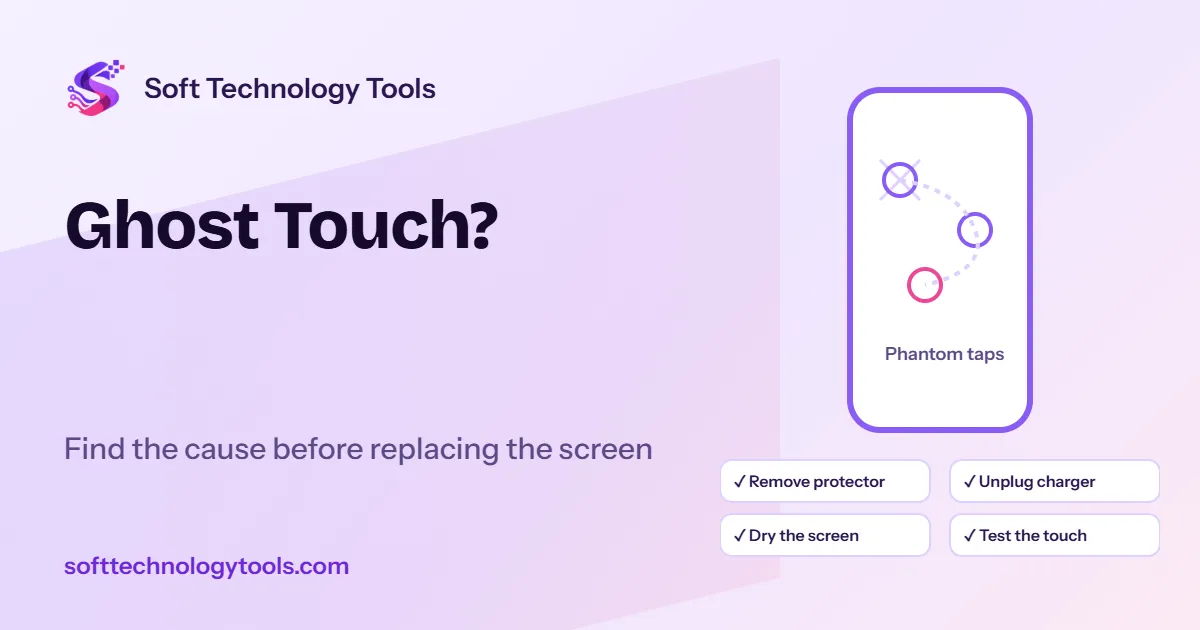
Ghost touch is when your phone’s screen acts as if someone is tapping it: apps open on their own, text appears, the screen scrolls or the keyboard types by itself. The opposite problem, where parts of the screen stop responding to your touch, often has the same causes. Before you replace the screen, check the simple things: a screen protector, moisture or dirt, a faulty charger, a touch or accessibility setting, or a misbehaving app.
If none of these is the cause, the touch layer of the screen is probably damaged and needs a repair. The steps below go from the quickest checks to a repair, for Android phones (Samsung, Redmi, Infinix, Tecno, Vivo, Oppo, Pixel) and iPhone.
What causes ghost touch
| Cause | Clue | What to try |
|---|---|---|
| Screen protector or case | Started after fitting new glass or a cover | Remove it and test |
| Moisture, sweat or dirt | Worse with wet hands or in humid weather | Dry and clean the screen |
| Charger or cable | Happens only while charging | Try another charger, avoid using it while charging |
| Touch or accessibility setting | Taps are missed or act strangely after a settings change | Check the settings below |
| An app or software issue | Happens in one app, or after an update | Update, safe mode |
| Damaged screen | Crack, drop, water damage, or the same spot always misbehaves | Repair |
Quick fixes to try first
1. Restart the phone
A restart clears temporary glitches. Samsung’s touchscreen troubleshooting page lists temporary system errors as one cause and suggests holding the Side key and Volume down together for more than 7 seconds to restart a Galaxy phone that is not responding. Apple’s first step is also to restart.
2. Remove the screen protector and case
Apple, Google and Samsung all suggest removing cases and screen protectors to see if touch improves. Samsung notes that protectors with adhesive only around the edges may not sit flat and can cause the screen to respond intermittently, and that non-genuine protectors or cases may affect touch. Peel off any stickers that cover the screen or its sensors too.
3. Clean and dry the screen and your hands
Samsung says moisture or water on the screen may affect normal touchscreen operation. Wipe it with a soft, dry cloth. Dry or clean your hands and take off gloves before testing. If the phone has been in water, see our mobile water damage guide.
4. Unplug the charger
Samsung says a damaged charger may cause the touch screen to malfunction, and suggests trying a different, undamaged charger and not using the touchscreen while charging. Apple also suggests disconnecting Lightning or USB-C accessories and, if that helps, trying a different outlet, cable or charger. If the ghost touches happen only while charging, a cheap or damaged charger is the first suspect.
Settings that affect touch
Touch sensitivity
If you use a screen protector, many phones have a setting for it. On Samsung go to Settings, Display, Touch sensitivity. On Pixel 8a and earlier the option is Screen protector mode under Settings, Display and touch, Touch sensitivity; on Pixel 9 models there is an Adaptive touch option in the same place. Try switching it on or off and testing.
Accessibility settings
Some accessibility features change how taps work. Samsung’s guide points to:
- TalkBack: if the phone reads out what you touch and gestures do not work normally, turn off TalkBack in Settings, Accessibility.
- Interaction and dexterity: in Settings, Accessibility, check touch and hold delay, tap duration and ignore repeated touches, and return them to their defaults if they were changed.
- Magnification shortcut: a triple-tap shortcut can make quick touches get missed.
Gesture navigation
Samsung notes that with full screen gestures on, a touch near the edge may be read as a gesture. To test, switch to buttons under Settings, Display, Navigation bar.
Test the screen on Android
To see exactly what the screen is registering, turn on Pointer location. First enable Developer options: Android’s official developer options guide says to tap Build number seven times. On Samsung, Build number is in Settings, About phone, Software information; on Pixel it is in Settings, About phone. Then, in Developer options, under Input, turn on Pointer location (or Show taps).
Now leave the phone on a table without touching it. If lines or circles appear where nobody is touching, the screen is registering false touches. Then draw slowly across every part of the screen with one finger: a gap or jump in the line shows a dead or faulty area. Turn the options off afterwards.
Samsung phones also have a test in the Samsung Members app: Support, Get started, Touch screen. Pixel 9 models have Touch diagnostics under Settings, Display and touch.
Rule out apps and software
- One app only? If the problem happens only in one app, Google suggests contacting that app’s developer. Update or reinstall the app.
- Update everything. Samsung says outdated software or apps can cause compatibility issues. Update the system in Settings, Software update, and apps from the Play Store.
- Safe mode. Safe mode turns off downloaded apps. Samsung suggests it to find out whether a recently installed app is causing touch problems. If the ghost touches stop in safe mode, remove recent apps one at a time. Google’s safe mode page notes the steps to enter it vary by phone.
- Factory reset, last of all. Samsung lists it as a last resort. It erases everything, so back up first and make sure you know the Google Account email and password on the phone, because it will ask for them after the reset. See our guide to FRP lock and proof of ownership. If touches still misbehave after a clean reset, it is hardware.
If ghost touch makes the phone unusable, Samsung notes you can connect it to a computer or monitor to control it, which can help you back up before a repair.
Ghost touch on iPhone
Apple’s page If the screen isn’t working on your iPhone or iPad covers a screen that is too sensitive or responds intermittently. Its steps are: restart the iPhone, make sure the screen is clean and free of debris or water, disconnect any Lightning or USB-C accessories, and remove any cases or screen protectors. If the screen still is not working, Apple says the iPhone may need service.
When the screen needs repair
Get the screen checked if:
- ghost touches continue with no protector, a dry screen and the charger unplugged;
- Pointer location shows touches when nobody is touching the screen;
- it started after a drop, a crack or water damage; or
- the problem stays after a factory reset.
A technician can test the display and, if it is faulty, replace the screen with a tested part. Our guide to screen, battery and charging port repairs explains what to expect. Through STT mobile services you tell us the phone, the problem and your location, verified shops near you send rates, and you pay only after the phone is checked. In Lahore, see mobile repair in Lahore. Requests are handled on WhatsApp only.
Frequently asked questions
What is the ghost touch problem solution?
Restart, remove the screen protector and case, dry the screen, unplug the charger and check touch settings. If ghost touches continue, the screen likely needs a repair.
Can a screen protector cause ghost touch?
Yes. Samsung says protectors that are not flat or not genuine can make touch respond intermittently. Remove it and test, or turn on touch sensitivity for protectors.
Why does ghost touch happen while charging?
A damaged or poor charger can affect the touchscreen. Try a different, undamaged charger and cable, and avoid using the screen while charging.
Will a factory reset fix ghost touch?
Only if the cause is software. Back up and know your Google Account login first. If ghost touch continues after a reset, the screen is faulty.
Related guides
POS Software in Pakistan: Ready-Made or Custom?
POS software in Pakistan: a feature checklist, ready-made vs custom compared, and what FBR POS integration means for Tier-1 retailers…

WordPress Website for Business in Pakistan: Pros and Cons
WordPress website development services in Pakistan: honest pros and cons, hosting requirements, security and updates, and when Shopify or…
Mobile Network Problem Solution: Signal, Data and Calls
Mobile network problem solution for Pakistan: fix no signal, mobile data and dropped calls on Android and iPhone, and know when to contact…