
Mobile Software Tool Rent in Pakistan: Every Tool Explained
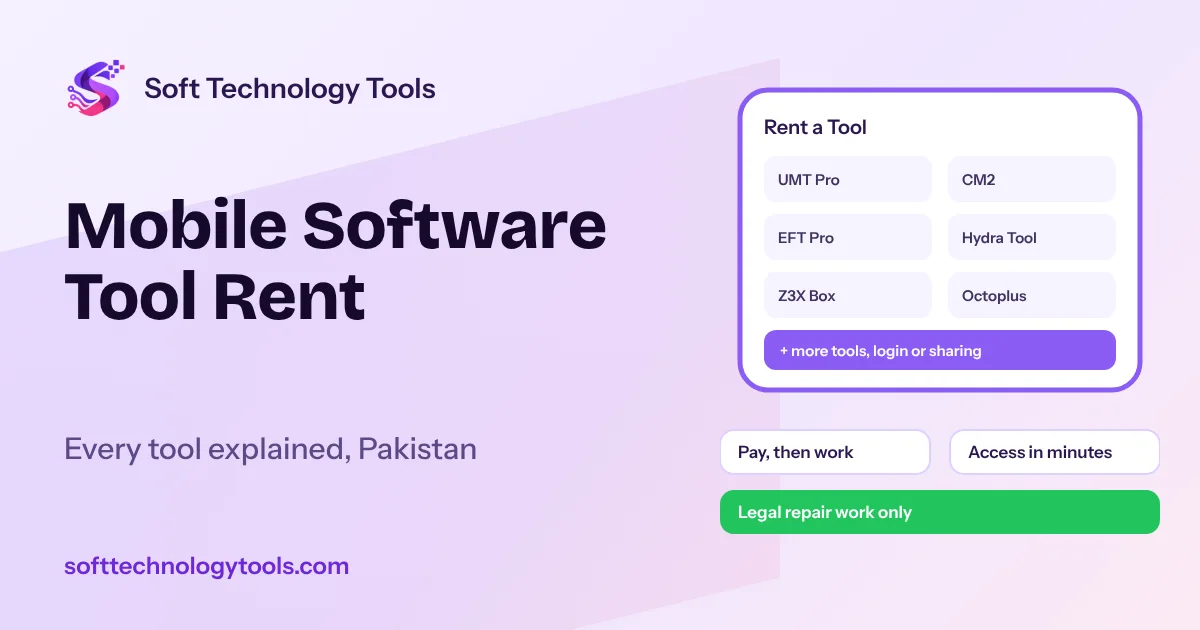
Mobile software tool rent in Pakistan lets a repair shop use a professional service tool for a few hours or a day, without buying a box, a dongle or a yearly licence. You pay for the time you need, finish the job, and the access ends.
Soft Technology Tools (STT) rents access to a range of well-known Android service tools through its Rent a Tool page. This guide explains how tool rental works, the difference between login tools and sharing tools, what you need before you order, and how to pick the right tool. It also includes a table of every tool currently listed.
What tool rental is and who it is for
Mobile service tools are PC programs, often paired with a box or dongle, that technicians use for software work on phones. Typical jobs include flashing or reinstalling firmware, reading device information, repairing software faults such as boot loops or a failed update, formatting a phone for its owner, and backing up or restoring data for the owner.
Each tool supports different chipsets and brands. A shop that works on many phones may need several tools, and buying all of them is a large outlay. Renting lets you use the tool that fits the phone on your bench, only for as long as the job takes.
Tool rental from STT is meant for:
- Mobile repair shops that need a tool they do not own for a particular job
- Shops whose own box or licence is unavailable for a while and who need to keep working
Each tool is a third-party product. STT rents access only. The tool’s name and logo belong to its maker.
Login tools and sharing tools
Every tool on the rental page is one of two kinds. The tool page tells you which one it is, and the way you receive access is different for each.
Login tools
With a login tool, you get your own username and password for the rental time. The login is shown on your order page after you enter an email code, and it is also sent to your email.
A few simple rules apply. Do not change the password or settings, do not share the login with anyone, and do not log in on more PCs than the tool allows.
Sharing tools (box and dongle tools)
Sharing tools rely on a physical box or dongle. STT connects the tool to your PC by remote sharing, so you can work as if the hardware were plugged in on your side. You install the tool, Radmin VPN and the STT sharing app from the download links on the tool page before your rental starts.
How ordering works, step by step
You order on the website. There is no need to message anyone to place an order.
- Open the tool page and pick the rental time. Options such as 1 hour, 3 hours or 24 hours differ from tool to tool.
- Fill in your details: name, mobile, email and city. Partner shops can add their Shop ID, which is optional.
- Pay to the account shown in the order form. The methods shown there depend on what is switched on, for example bank transfer, Raast, JazzCash, Easypaisa or QR. Then upload the payment screenshot and enter the transaction ID.
- Agree to the terms: tick the Rent a Tool Policy and the lawful-use agreement, which confirms you are renting the tool for lawful repair on phones you own or are authorised to service.
- Wait for verification. STT verifies the payment, and access is delivered 1 to 15 minutes after the payment is verified.
- Start working. Rental time starts when access is delivered, not when you pay.
Your order page shows the time left. You also get a reminder by email and app notification 15 minutes before the end. If you need to check on an order, use the Track order button on the Rent a Tool page.
For prices, see the current price on each tool page. STT Pro partner shops logged in to the Shop Portal get the STT Pro discount on rental prices.
What you need before renting
Rental time is short, so prepare everything first. Time lost because of an old version, missing drivers or a slow PC or internet connection on your side is not refunded.
- The latest version of the tool, downloaded and installed from the official link on the tool page
- USB drivers for the phone’s brand and chipset, installed and tested
- A good USB cable that holds a stable connection
- A working Windows PC that is not struggling with other programs
- A stable internet connection
- For sharing tools: Radmin VPN and the STT sharing app, installed from the links on the tool page
- The phone ready on the bench, charged, with the owner’s permission and the job planned
Every tool compared
This table lists the main servicing tools on the STT rental page at the time of writing; the Rent a Tool page always shows the current list. The chipsets and brands come from each tool page. For the full model list, check the maker’s official site, linked from the tool page.
| Tool | Type | Chipsets and brands | Status |
|---|---|---|---|
| Avengers Box | Sharing | Qualcomm, MTK, SPD; Samsung, Huawei, Xiaomi, Oppo, Vivo | Available |
| Chimera Tool | Login | Samsung, Xiaomi, Huawei, LG, Motorola, Nokia | Price coming soon |
| Infinity CM2 Dongle | Sharing | MTK, SPD, Qualcomm; Samsung, Huawei, Xiaomi, Oppo, Vivo, Realme, Tecno, Infinix | Available |
| DFT Pro | Login | MTK, Qualcomm; Xiaomi, Samsung, Oppo, Vivo | Price coming soon |
| EFT Pro Dongle | Sharing | Samsung, Qualcomm, MTK, Rockchip, Spreadtrum, Allwinner; Xiaomi, Oppo, Vivo, Huawei | Available |
| HCU Client Tool | Sharing | Huawei, Honor | Available |
| Hydra Tool (Dongle) | Sharing | Qualcomm, MTK, SPD, HiSilicon, Exynos, Allwinner, Rockchip, Unisoc; Samsung, Xiaomi, Oppo, Vivo, Realme | Available |
| Infinity Nokia Best Tool | Sharing | Nokia, Microsoft Lumia, Nokia keypad and Asha phones | Available |
| Octoplus Huawei Tool | Sharing | Huawei, Honor | Available |
| Octoplus Samsung & LG Tool | Sharing | Samsung, LG | Available |
| Sigma Plus Tool | Sharing | Exynos, HiSilicon, MTK, Qualcomm, Unisoc; Huawei, Alcatel, Lenovo | Available |
| TFM Tool Pro | Login | MediaTek, Qualcomm, Unisoc; Samsung, Xiaomi, Oppo, Vivo | Price coming soon |
| UAT Pro | Login | MediaTek, Qualcomm; Samsung, Xiaomi, Oppo, Vivo, Huawei, Realme | Price coming soon |
| UMT Pro Dongle | Sharing | MTK, Qualcomm, SPD; Samsung, Huawei, Xiaomi | Available |
| Z3X Box (Samsung Tool Pro) | Sharing | Samsung | Available |
| Z3X Pandora Box | Sharing | MTK, Qualcomm, SPD (Unisoc); Samsung, Xiaomi, Oppo, Vivo, Realme, Tecno, Infinix | Available |
Tools marked “Price coming soon” are listed but not yet priced. Check the tool page for the latest status.
How to choose the right tool
The right tool depends on the phone in front of you and the job you need to do. Work through these questions before you order.
- Which chipset does the phone use? Many tools are organised by chipset, such as MTK, Qualcomm or SPD (Unisoc). Match the phone’s chipset to the tool’s list first.
- Which brand is it? Some tools focus on one brand or family, such as Z3X Box for Samsung, HCU Client and Octoplus Huawei for Huawei and Honor, or Nokia Best for Nokia. Others, such as CM2, Hydra Tool and Pandora, cover many brands.
- Is your exact model supported? Check the maker’s official site, linked from the tool page, before you pay.
- Login or sharing? A login tool runs on your PC with your own login. A sharing tool needs Radmin VPN and the STT sharing app as well.
- How long will the job take? Pick a time option that leaves room for driver checks and a second attempt.
If the tool you want is the UMT Pro Dongle, there is also an option to rent UMT Pro and Avengers Box together as one bundle. Ask when you order.
If you are not sure which tool suits a phone, or you would rather have the work done for you, STT also offers mobile software services through verified shops.
Legal use
Tools are rented only for lawful servicing of phones you own or are authorised to service. They must never be used on lost, stolen or blocked phones. Before any job, check the IMEI first with the theft check.
STT never provides tools or help for IMEI change, getting around anti-theft protection, or unlocking lost, stolen or blocked phones. Misuse ends the rental without a refund and may be reported. Read the full Device & Legal Use Policy before you order.
Frequently asked questions
Do I need to contact STT to place an order?
No. You order directly on the tool page: choose the time, fill in your details, pay, upload the payment screenshot and transaction ID, and agree to the policy.
When does my rental time start?
Rental time starts when access is delivered, not when you pay. Access is delivered 1 to 15 minutes after STT verifies your payment.
How will I know how much time is left?
Your order page shows the time left. You also get a reminder by email and app notification 15 minutes before the end.
Can I get a refund if I cannot finish the job?
Once the login or sharing access has been delivered, no refund applies. A payment is refunded only if STT cannot deliver the tool you paid for.
How much does it cost to rent a tool?
Prices differ by tool and rental time. See the current price on each tool page. Partner shops logged in to the Shop Portal get the STT Pro discount.
What is the difference between a login tool and a sharing tool?
A login tool gives you your own username and password for the rental time. A sharing tool is a box or dongle tool that STT connects to your PC by remote sharing, using Radmin VPN and the STT sharing app.
Ready to start? Browse every tool on the Rent a Tool page.
Related guides
POS Software in Pakistan: Ready-Made or Custom?
POS software in Pakistan: a feature checklist, ready-made vs custom compared, and what FBR POS integration means for Tier-1 retailers…
Ghost Touch Problem Solution for Android and iPhone
Ghost touch problem solution for Android and iPhone: check the protector, charger, moisture and touch settings, test the screen, or get it…
WordPress Website for Business in Pakistan: Pros and Cons
WordPress website development services in Pakistan: honest pros and cons, hosting requirements, security and updates, and when Shopify or…