
Phone Data Transfer Service: Move Everything to Your New Phone Safely
A phone data transfer service moves your contacts, photos, videos, messages, WhatsApp chats and documents from your old phone to your new one, then checks that nothing is missing. Most of the work is done with free official tools from Google, Apple and Samsung, so the value of a good shop is in preparing both phones properly, choosing the right method and checking the result with you.
This guide explains what a mobile content transfer includes, how the official tools work, what to prepare, how to protect your privacy and what to do if the old phone is broken. Every step also works at home.
What a phone data transfer service includes
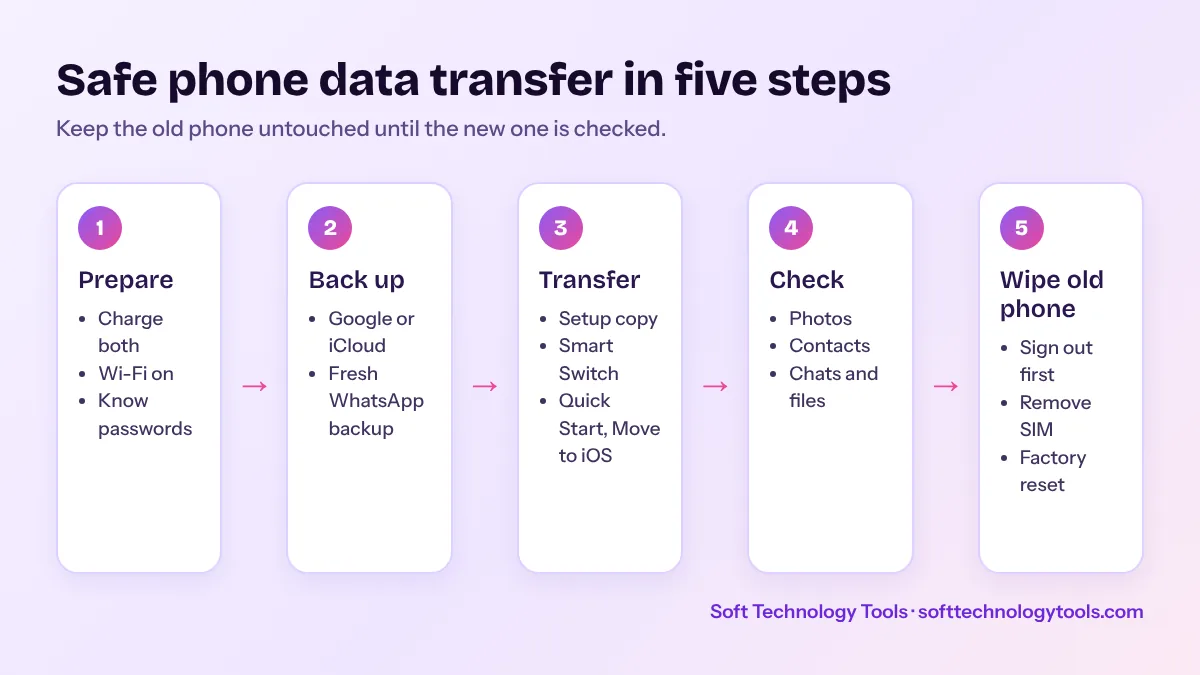
A proper mobile content transfer is more than pressing “copy”. A careful technician usually:
- checks both phones are charged and the new one has enough storage;
- makes a fresh backup of the old phone first;
- uses the official tool for your two phones, by Wi-Fi or cable;
- moves contacts, photos, videos, messages, calendars, documents and, where supported, WhatsApp chats;
- checks the result with you before you leave.
What usually does not transfer
Some content cannot move, whoever does the job. Google’s guide to copying data from an iPhone to Android says paid apps and in-app purchases never transfer, nor do photos kept only in iCloud, Safari bookmarks or Health data. Apple’s Move to iOS page says music, books and PDFs must be moved by hand, and apps downloaded again.
Do it yourself or use a shop?
If both phones work, you have Wi-Fi and you know your passwords, the official tools are free and guide you on screen. A shop makes sense when the old phone is damaged, when you are switching between Android and iPhone and want each step checked, or when you want a full backup kept on a computer too. The steps are the same either way.
What to prepare before the transfer
Most failed transfers come down to one missing step. Check these first:
- Charge both phones and keep them plugged in.
- Use Wi-Fi, not mobile data, especially for photos and videos.
- Know the old phone’s screen lock. Google says Android transfers ask for it.
- Know your Google account or Apple ID password.
- Check the new phone has enough storage.
- Keep your SIM working so you can receive verification codes.
- iPhone to Android: Google says to turn off iMessage on the iPhone first.
Google advises clearing the old phone only after confirming everything has copied. Until then, it is your safety net.
How the official tools move your content
Android to Android
Google’s help page, Switch to a new Android device explains the steps: during setup, you choose to copy from an Android device, pair the phones by scanning a QR code, enter the old phone’s screen lock and pick the apps and data to copy. If you no longer have the old phone, you can restore from an Android backup by signing in, though you may need the old phone’s screen lock.
Samsung Galaxy phones
Samsung’s free Smart Switch moves data to a Galaxy phone by Wi-Fi, by cable, through a Windows or Mac computer, or from an SD card or USB drive. It works from Android phones and iPhones.
iPhone to iPhone
Apple’s Quick Start is the simplest route. Place the new iPhone next to the unlocked old one, with Wi-Fi and Bluetooth on, and follow the prompts. You can download from iCloud in the background, or copy directly from the old phone, which Apple says keeps both phones busy until it finishes.
Android to iPhone
Apple’s Move to iOS app copies contacts, messages, photos and videos, files, mail accounts, calendars, call history and WhatsApp messages and media. Apple says using other apps or taking a call during the transfer can stop content from moving.
iPhone to Android
Google’s guide covers transfer during setup by QR code on newer phones, by cable, or with the Android Switch app on the iPhone. The cable method moves the most, including WhatsApp history, while the wireless Android Switch app moves only contacts, calendars, photos and videos.
Transfer methods compared
| Method | From and to | What you need | Good for |
|---|---|---|---|
| Copy during setup (Google) | Android to Android, iPhone to Android | Both phones, Wi-Fi or cable, Google account, old screen lock | Most people moving to Android |
| Smart Switch | Android or iPhone to Samsung Galaxy | The app, Wi-Fi, cable, computer or SD card | Galaxy buyers, large transfers by cable |
| Quick Start | iPhone to iPhone | Both iPhones, Wi-Fi and Bluetooth | Upgrading iPhone users |
| Move to iOS | Android to iPhone | The app on Android, Wi-Fi, power | Switching to iPhone |
| Cloud backup and restore | Same system | Google or iCloud account with enough storage | When the old phone is lost or damaged |
WhatsApp chats: the part people lose most
WhatsApp chats are stored on the phone, so they need extra care. The official options are:
- Same system: Google notes that WhatsApp chats are transferred separately between Android phones, using WhatsApp’s own chat transfer.
- iPhone to Android: WhatsApp announced in its March 2026 feature roundup that its chat transfer now supports moving chat history from iOS to Android. Google’s cable method also includes WhatsApp history.
- Android to iPhone: Move to iOS includes WhatsApp messages and media.
- To a Samsung Galaxy: Samsung says Smart Switch can move WhatsApp chats only before WhatsApp is signed in on the new phone.
Before you start, make a fresh backup inside WhatsApp, check its date and keep the same number active so you can verify it on the new phone. WhatsApp’s Help Centre has the current steps.
Privacy: handing your phone to a shop
Your phone holds your photos, chats and banking apps. Keep them safe:
- Stay with your phone while the transfer is done, and unlock it yourself.
- Type your own passwords. A genuine shop does not need to write down your Google or Apple password.
- Never share OTP codes or banking passwords. Moving your data does not need them. STT and our partner shops never ask for them.
- Ask where any backup copy is kept, and have it given to you or deleted in front of you.
Moving data is only done for the owner of the phone. Copying someone else’s data, or getting into a phone that is not yours, is something STT and partner shops refuse, as set out in our device policy.
If the old phone is broken
A cracked screen or a phone that will not charge does not always mean the data is gone. Often the storage is fine and only one part has failed.
- Screen broken but phone works: a screen repair, or a cable to a computer, may be enough to get the data out.
- Phone will not charge or turn on: the fault may be the battery or charging port, which a repair can fix. See our guide to screen, battery and charging port repairs.
- Board or water damage: a technician needs to check it before anyone can say what is recoverable.
Switch off a water-damaged phone and get it checked. Data recovery is part of our mobile software service, done only for the phone’s owner. Nobody can promise every file back.
Before you sell or give away the old phone
Once everything is on the new phone, prepare the old one properly:
- Android: remove your Google account. Google’s device protection page explains that after a reset, the phone asks for a Google account that was on it before, and cannot be used without it. That is Factory Reset Protection.
- iPhone: Apple’s checklist, what to do before you sell or give away your iPhone, says to sign out of iCloud and the App Store, deregister iMessage if moving to a non-Apple phone, then erase all content and settings.
- Remove the SIM and memory card, then reset the phone.
Skip the account step and the buyer will be stuck at the lock screen. Our FRP lock guide explains why knowing your own login matters.
Getting your data moved through STT
If you want a shop to do your phone data transfer, use our mobile services page. Tell us your phone, what you need (a transfer, a backup or getting data off a damaged phone) and your location. Verified shops near you send their rates, you choose, and you pay only after the job is checked. You can follow the job at /track/.
Mobile service requests are handled on WhatsApp only. A shop may ask for the box or receipt and a matching CNIC, because work is done only for the owner.
Frequently asked questions
What does a phone data transfer service include?
It backs up the old phone, moves contacts, photos, videos, messages and documents with the official tool, and checks the result with you. Paid apps cannot move.
Can I transfer data from Android to iPhone?
Yes. Apple’s Move to iOS app copies contacts, messages, photos, videos, calendars, mail accounts and WhatsApp messages and media from Android to a new iPhone during setup.
Will my WhatsApp chats move to the new phone?
Yes, if you use WhatsApp’s chat transfer, restore from a backup, or include WhatsApp in an official switching tool that supports it. Make a fresh backup first and keep the same number active.
Is it safe to let a shop transfer my data?
It can be, if you stay with the phone, unlock it and type passwords yourself, never share OTP codes, and ask that any backup copy is given to you or deleted.
Can data be moved from a phone that will not turn on?
Often, yes. The storage is frequently fine when the screen, battery or charging port has failed. A technician needs to check it first, and recovery is only done for the owner.
خلاصہ (اردو)
- پرانے موبائل سے نئے موبائل میں ڈیٹا منتقل کرنے کے لیے آفیشل طریقے استعمال کریں: اینڈرائیڈ میں سیٹ اپ کے دوران کاپی، سام سنگ کے لیے Smart Switch، آئی فون کے لیے Quick Start، اور اینڈرائیڈ سے آئی فون کے لیے Move to iOS۔
- شروع کرنے سے پہلے دونوں فون چارج کریں، وائی فائی استعمال کریں اور پرانے فون کا اسکرین لاک اور اپنے گوگل اکاؤنٹ یا ایپل آئی ڈی کا پاس ورڈ یاد رکھیں۔
- دکان پر فون کے ساتھ رہیں، پاس ورڈ خود لکھیں اور کبھی کسی کو OTP نہ دیں۔
- پرانا فون بیچنے سے پہلے اکاؤنٹ سائن آؤٹ کریں، سم اور میموری کارڈ نکالیں اور پھر ری سیٹ کریں۔
Khulasa (Roman Urdu)
- Purane mobile se naye mobile mein data transfer ke liye official tareeqe use karein: Android setup copy, Smart Switch, Quick Start ya Move to iOS.
- Dono phone charge karein, Wi-Fi use karein aur purane phone ka lock aur Google ya Apple ID ka password yaad rakhein.
- Dukaan par phone ke saath rahein, password khud likhein aur OTP kabhi kisi ko na dein.
- Purana phone bechne se pehle account sign out karke reset karein.
Related guides
POS Software in Pakistan: Ready-Made or Custom?
POS software in Pakistan: a feature checklist, ready-made vs custom compared, and what FBR POS integration means for Tier-1 retailers…
Ghost Touch Problem Solution for Android and iPhone
Ghost touch problem solution for Android and iPhone: check the protector, charger, moisture and touch settings, test the screen, or get it…
WordPress Website for Business in Pakistan: Pros and Cons
WordPress website development services in Pakistan: honest pros and cons, hosting requirements, security and updates, and when Shopify or…