
SIM Not Detected in Phone: Step-by-Step Fixes
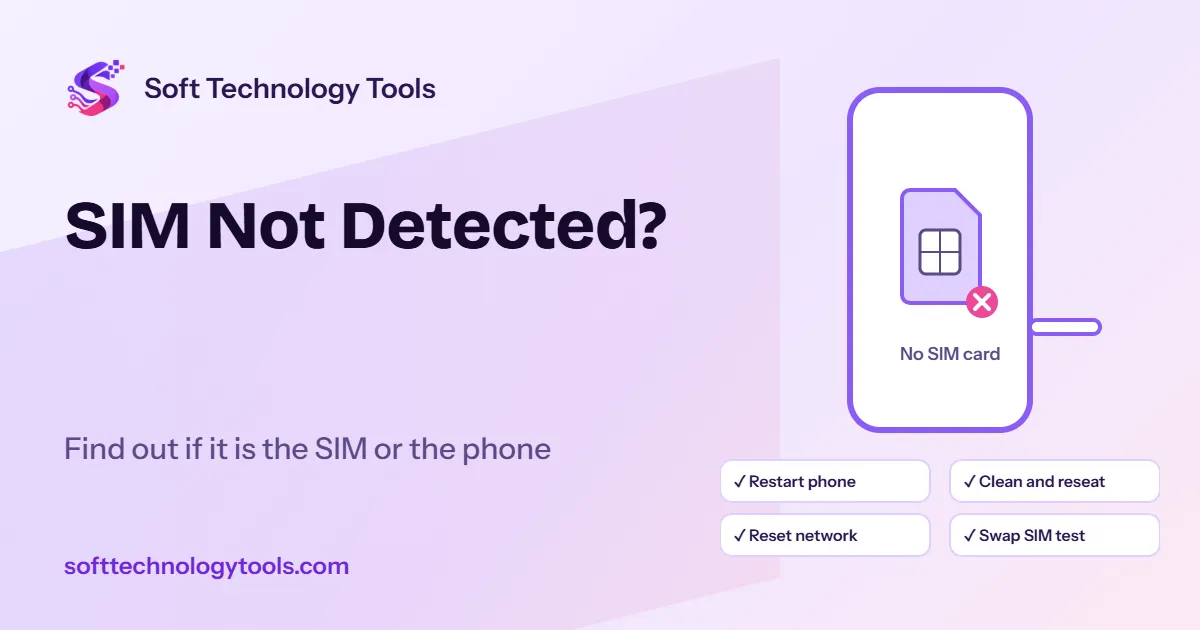
When a phone shows “No SIM card”, “SIM not detected” or “Invalid SIM”, it cannot read the card in the tray at all. The cause is usually simple: the SIM is loose, dirty or damaged, the SIM slot has been turned off, or the phone needs a restart or a network settings reset. Less often the SIM tray, the SIM reader or the board is damaged.
The steps below take you from the quickest checks to a repair, and help you find out whether the problem is the SIM card or the phone. They work for Samsung, Redmi, Infinix, Tecno, Vivo, Oppo and other Android phones, and for iPhone, with Jazz, Zong, Ufone and Telenor SIMs.
Why a phone stops detecting the SIM
- SIM not seated properly. The card has moved, sits upside down or the tray is not fully closed.
- Dirty or worn contacts. Dust or residue on the gold chip stops the phone reading it.
- A damaged SIM. Old SIMs that have been cut, bent or moved between many phones often fail.
- The SIM slot is turned off in the settings, which is easy to do by mistake on a dual-SIM phone.
- Software or network settings after an update or a settings change.
- A bent tray or damaged SIM reader, often after a drop, water damage or forcing the tray in.
- A carrier-locked phone, usually one bought from abroad, which accepts only one network’s SIMs.
Quick checks first
- Turn airplane mode off. On Android it is in the quick settings panel or under the network settings.
- Restart the phone. Samsung says restarting may resolve SIM card issues. On most Samsung phones press and hold Volume down and Power for about 7 seconds, then tap Restart.
- Check the SIM is switched on. On Pixel and similar Android phones go to Settings, Network and internet, SIMs, pick the SIM and make sure Use SIM is on.
If the SIM is detected after these, you are done. If not, continue.
Step-by-step fixes
1. Remove, clean and reinsert the SIM
Turn the phone off first. Eject the tray with the SIM tool or a paperclip. Samsung’s No SIM card detected guide says to clean the SIM card and tray with a clean, dry cloth, reinsert the card properly aligned with the tray, and be careful not to break or deform the tray. Then turn the phone on.
Look at the tray while it is out. If it is bent, cracked or has dirt in it, that may be the problem. Never force a tray back in.
2. Do not use SIM adapters or cut SIMs
If your SIM was cut down to fit, or sits in an adapter, it can move inside the slot or catch on the reader. ASUS’s SIM not detected FAQ warns that SIM adapters and modified SIM cards can damage the SIM or the device. Ask your operator for a SIM of the right size instead.
3. Try the other SIM slot
On a dual-SIM phone, move the SIM to the other slot. If it works there, the first slot or its settings are the problem.
4. Install software updates
Install any system update over Wi-Fi with the phone charged. On Samsung go to Settings, Software update. On Pixel go to Settings, System, Software update.
5. Reset mobile network settings
This returns the phone’s mobile network settings to their defaults. On Samsung: Settings, General management, Reset, Reset mobile network settings, Reset settings, then Reset. On Pixel: Settings, System, Reset options, Reset mobile network settings. Samsung notes this cannot be undone, so note any custom settings such as a manually entered APN first.
6. Factory reset only as a last step
ASUS lists a factory reset as the final software step. It erases everything, so back up first, and make sure you know the Google Account email and password on the phone, because the phone will ask for it after the reset (Factory Reset Protection). Our guide to FRP lock and proof of ownership explains why. In most SIM cases, test the SIM in another phone (below) before you consider a reset.
SIM problem or phone problem?
The single most useful test is to swap SIMs. Samsung’s advice is to insert the SIM into another phone: if the other phone does not detect it either, the SIM is most likely damaged. Apple and Google give the same advice.
| Result | What it means | What to do |
|---|---|---|
| Your SIM fails in another phone too | The SIM card is faulty | Get a replacement SIM from your operator |
| Another SIM works in your phone | Your SIM or line is the problem | Contact your operator |
| No SIM works in your phone | Phone settings, tray or SIM reader | Try the steps above, then a repair check |
| SIM is detected but shows “Emergency calls only” | SIM is read but not registered | See our emergency calls only guide |
A different case: if the SIM is read and other SIMs work in other phones, but your phone shows no network with every SIM, its device registration may be the issue rather than the SIM. In Pakistan, PTA’s DIRBS system is designed so that only approved devices work on mobile networks. You can check a phone’s status, as explained in our guide on how to check if a phone is PTA approved.
iPhone: No SIM or Invalid SIM
Apple’s page If you see Invalid SIM or No SIM gives these steps:
- Make sure you have an active plan with your operator.
- Check whether the iPhone is locked to a carrier: go to Settings, General, About. If Carrier Lock shows “No SIM restrictions”, it is unlocked. A locked iPhone works only with its own carrier.
- Restart the iPhone.
- Check for a carrier settings update in Settings, General, About.
- Take the SIM out and reinsert it, making sure the tray closes completely and is not loose.
- Try another SIM card.
If the iPhone uses an eSIM, Apple says to contact your carrier. If the alert stays after all of this, Apple says the iPhone may need service.
Getting a replacement SIM in Pakistan
If the SIM itself is faulty, your operator (Jazz, Zong, Ufone or Telenor) can issue a duplicate SIM with the same number. Ask your operator what to bring. For example, Ufone’s general terms say a duplicate SIM is issued through the same procedure as a new SIM, which includes a valid CNIC and fingerprint verification with NADRA. Take your original CNIC to the operator’s service centre or franchise.
The same Ufone terms say a connection that stays inactive for 180 days may be disconnected. If a SIM has not been used for many months and is still not working after these steps, ask your operator whether the number is still active.
When the phone needs a repair
Get the phone checked if no SIM works in it, the tray is bent or stuck, the problem started after a drop or water damage, or the SIM is detected only when you press on the phone. A technician can inspect the tray and SIM reader and test the board. Through STT mobile services you tell us the phone, the problem and your location, verified shops near you send rates, and you pay only after the phone is checked. In Lahore, see mobile repair in Lahore. Requests are handled on WhatsApp only, and we only work on phones you own; see our device policy.
Frequently asked questions
Why is my SIM not detected in my phone?
Usually the SIM is loose, dirty or damaged, or the SIM slot is turned off. Restart, reinsert the SIM, and test it in another phone to see whether the card or the phone is at fault.
How do I know if my SIM card is damaged?
Put it in another phone. If that phone cannot detect it either, the SIM is most likely damaged and your operator can replace it.
Will I lose my number if I replace my SIM?
No. A duplicate SIM keeps your number. Ask your operator what to bring; Ufone, for example, issues duplicate SIMs with CNIC and NADRA fingerprint verification.
Can a software problem cause SIM not detected?
Yes. A restart, a software update or resetting mobile network settings fixes many cases. If no SIM works even after these, the tray or SIM reader may need a repair.
Related guides

POS Software in Pakistan: Ready-Made or Custom?
POS software in Pakistan: a feature checklist, ready-made vs custom compared, and what FBR POS integration means for Tier-1 retailers…
Ghost Touch Problem Solution for Android and iPhone
Ghost touch problem solution for Android and iPhone: check the protector, charger, moisture and touch settings, test the screen, or get it…

WordPress Website for Business in Pakistan: Pros and Cons
WordPress website development services in Pakistan: honest pros and cons, hosting requirements, security and updates, and when Shopify or…