
Display Problem in Mobile: Lines, Flicker and Black Screen Fixes
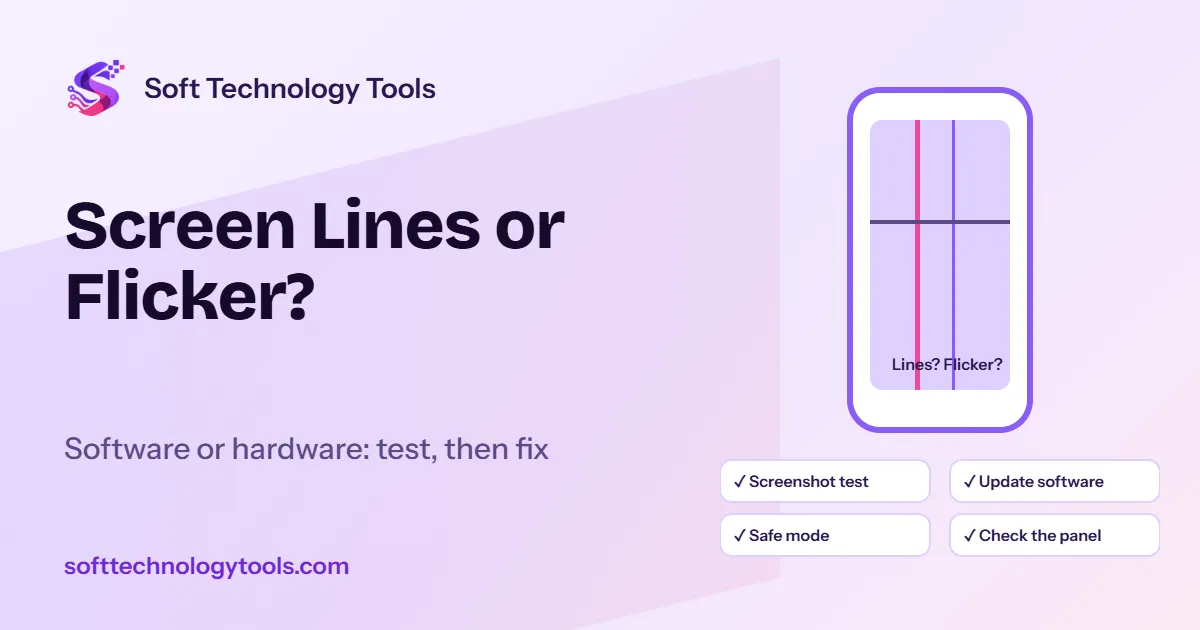
A display problem in a mobile usually shows up in one of four ways: lines across the screen, flickering, odd colours, or a black screen while the phone still rings or vibrates. Some of these are software faults you can fix in a few minutes. Others mean the display panel or its connector is damaged and needs a technician.
This guide helps you tell the two apart. Start with the quick tests below, then work through the fixes in order. If the problem stays after all of them, it is almost certainly hardware.
Common display problems and what they mean
Most screen faults fall into a few groups. The table gives a rough guide to the likely cause and the first thing to try.
| What you see | Likely cause | First thing to try |
|---|---|---|
| Thin green, pink or white lines that stay put | Damaged panel or loose connector, often after a drop or pressure | Screenshot test, then get it checked |
| Lines that appear only in some apps | App or software glitch | Restart and update |
| Flickering at low brightness | Brightness or display settings | Change adaptive brightness and refresh rate |
| Flickering that started after a new app | Downloaded app | Test in safe mode |
| Black screen, but calls and sounds still work | Frozen software, or a dead display | Force restart, then charge |
| Cracks, black blots or dead pixels | Physical damage | Display replacement |
Quick test: software or hardware?
Huawei’s support site describes a simple test for lines on the screen that works on most phones. Take a screenshot, open it in your gallery and swipe or zoom.
- The lines move with the screenshot: they are part of the image the phone is drawing, so the cause is likely software. Restart and continue with the steps below. Huawei also suggests checking that “Pointer location” is not switched on in Developer options.
- The lines stay in the same place on the glass: the fault is in the display itself. Back up your data and have the phone checked.
You can also look at the screenshot on another phone or a computer. If it looks clean there, the problem is in your phone’s display, not in the picture.
Lines on the screen
A single green, pink or white line running from top to bottom is often a hardware fault. It may appear some time after a drop, or after the phone was pressed hard in a pocket or bag.
If the screenshot test points to software, try these in order:
- Restart the phone. A restart clears many temporary display glitches.
- Install system updates. Google’s Pixel help page on screen appearance issues says to install any available update under Settings, System, System update when you see flickering, a green tint or lines. On Samsung the path is Settings, Software update.
- Update your apps from the Play Store or App Store.
- Test in safe mode on Android (see below) if the lines only appear sometimes.
If the lines stay after an update and in safe mode, the display panel or its cable is the cause. Google’s page says that if the problem continues, the phone should be repaired.
Flickering screen
Flickering can come from settings, apps or the hardware, so it is worth trying every step here. Samsung’s guide to a flickering or glitching screen recommends the following.
1. Check for physical damage
A cracked or broken screen can flicker. If you see cracks, no setting will fix it.
2. Update the software and apps
Go to Settings, then Software update, and install anything waiting. Then open the Play Store, tap your profile icon, then Manage apps and device, and update all apps.
3. Change display settings
- Adaptive brightness: in Settings, Display, try switching it off (or on, if it was off) and set brightness by hand. Flicker at very low brightness is common.
- Motion smoothness: in Settings, Display, Motion smoothness, choose Adaptive or Standard. Not every model has this option.
- Screen resolution: in Settings, Display, Screen resolution, try a different option such as FHD+ or HD+. Samsung notes that apps can flicker if the resolution does not match what they support.
4. Check the charger
Samsung also lists the charger and cable as a possible cause. If the screen flickers only while charging, try another compatible charger and cable. Our guide to mobile heating problems covers chargers that make a phone run hot.
5. Test in safe mode
On most Samsung phones: press and hold Volume down and the Side key until the power menu appears, touch and hold Power off, then tap Safe mode. If the flickering stops, a downloaded app is the cause. Uninstall the most recent apps one at a time until it stops. If it still flickers in safe mode, Samsung says it is likely a hardware problem. To leave safe mode, simply restart the phone.
If the screen also taps or swipes by itself, see our guide to the ghost touch problem as well.
Black screen but the phone is on
If the phone rings, vibrates or plays sound but the screen stays black, first rule out frozen software and a flat battery.
- iPhone: Apple’s page on an iPhone that won’t turn on or has a black screen says to force restart it. On iPhone 8 and later, press and release volume up, press and release volume down, then hold the side button until the Apple logo appears. This can take more than 10 seconds. If nothing happens, charge it for an hour and try again.
- Pixel and many Android phones: Google’s display help says to plug the phone in and hold Volume up and Power together for at least 20 seconds. If a red light shows, the battery is fully drained: charge it for at least 30 minutes, then hold Power.
If the phone clearly works (you can hear it, or it connects to a computer) but the screen never lights up, the display or its connector has failed. This often happens after a drop or after liquid gets inside. If the phone has been wet, read our mobile water damage guide before charging it.
When the display needs repair
Get the phone checked if any of these apply:
- lines or blots stay in place in the screenshot test;
- flickering continues in safe mode and after updates;
- the screen is cracked, or has black or purple patches that spread;
- the phone works but the screen is completely black; or
- touch stops working in one area as well as the picture going wrong.
Before a repair, back up your phone. Our phone data transfer guide explains how. A shop will usually replace the complete display assembly, and the price depends heavily on the model and on whether the part is original or a copy.
Through STT mobile services you tell us the phone, the problem and your area. Verified shops near you send their rates, and you pay only after the phone is checked. In Lahore, see mobile repair in Lahore. You can follow the job on our tracking page with your reference number. A shop may ask for the box, receipt or a matching CNIC; our device policy explains why.
Frequently asked questions
Why are there green lines on my phone screen?
A fixed green or pink line is usually a fault in the display panel or its connector, often after a drop or pressure. If the line does not show in a screenshot, the screen needs repair.
Can a software update fix a display problem in a mobile?
Sometimes. Google and Samsung both suggest installing updates for flicker and lines. If the problem stays after an update and in safe mode, it is hardware.
Why does my screen flicker only at low brightness?
Brightness settings are a common cause. Try turning adaptive brightness off or on and set the level by hand. If flicker continues at every level, have it checked.
My phone rings but the screen is black. Is my data safe?
Usually, yes. A dead display does not erase your data. A technician can replace the screen, and your files are normally still there afterwards.
Where can I get a mobile display checked in Lahore?
Send your model and problem through STT mobile services or on WhatsApp. Verified shops send rates, and you pay only after the phone is checked. Mobile requests are handled on WhatsApp only.
Related guides

POS Software in Pakistan: Ready-Made or Custom?
POS software in Pakistan: a feature checklist, ready-made vs custom compared, and what FBR POS integration means for Tier-1 retailers…
Ghost Touch Problem Solution for Android and iPhone
Ghost touch problem solution for Android and iPhone: check the protector, charger, moisture and touch settings, test the screen, or get it…

WordPress Website for Business in Pakistan: Pros and Cons
WordPress website development services in Pakistan: honest pros and cons, hosting requirements, security and updates, and when Shopify or…